
Media library · File manager
WordPress File Manager — Organize Your Media Library With Folders & Shortcuts
Turn the WordPress media library into a real WordPress file manager: unlimited folders, color labels, drag-and-drop, keyboard shortcuts, grid and list views, sidebar width control, and built-in document libraries—without breaking media URLs.
Why folder management matters for SEO and productivity
Search engines reward fast, well-structured sites. When editors cannot find optimized images or documents quickly, they upload duplicates, skip alt text, or ship the wrong asset—hurting both Core Web Vitals and content quality. A clear WordPress media library folder structure reduces that friction: assets are reusable, naming stays consistent, and workflows stay fast under deadlines.
- Easier discovery without relying on search alone
- Fewer orphaned duplicates clogging disk and backups
- Better collaboration when multiple people touch the same library
Organization
Folders That Work the Way You Think
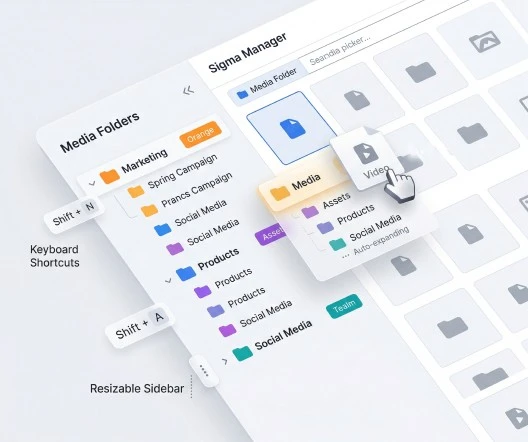
Create folders and subfolders, assign colors for quick identification, and see file counts in the sidebar so overloaded areas stand out before they become a mess.
Folder management highlights
- Folder colors — custom colors per folder for at-a-glance navigation
- Default folder color — color picker for newly created folders
- Item count — see how many files live in each folder without opening it
- Auto-expand — optionally expand folders that contain subfolders when the library loads
Speed
Move Files the Way That Feels Natural
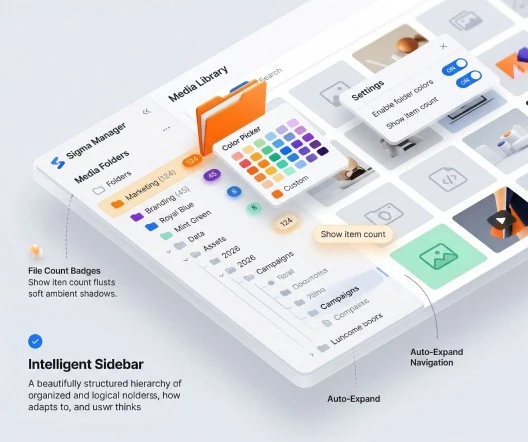
Reorganize with drag-and-drop or lean on keyboard shortcuts when you are working through large batches—ideal for migrations, seasonal campaigns, and cleaning up after imports.
Shortcuts you can use every day
- Shift + A — select all
- Shift + N — new folder
- Shift + U — upload
- Shift + Del — delete
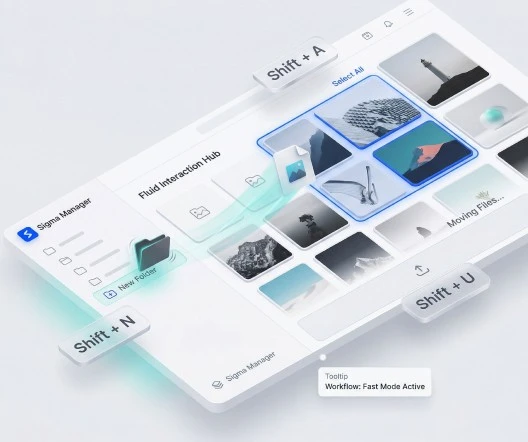
Customize your media library view for your workflow
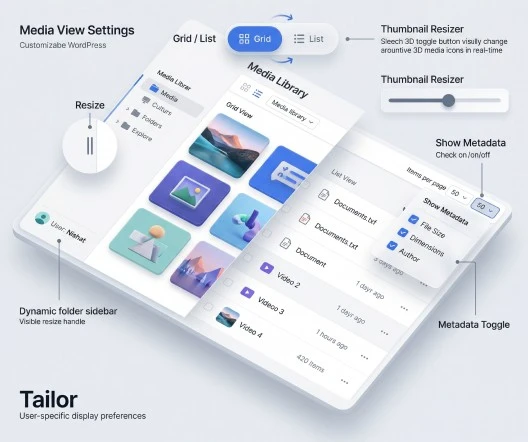
Choose a default grid or list view, control how many items load per page (typically 20–100), tune thumbnail size, and show optional file size and upload date in list view. Adjust the folder sidebar between 200px and 400px so long labels stay readable on wide monitors and laptops alike.
Grid, list & pagination
Pick the layout that fits asset review: dense grids for visuals or scannable lists for filenames and metadata.
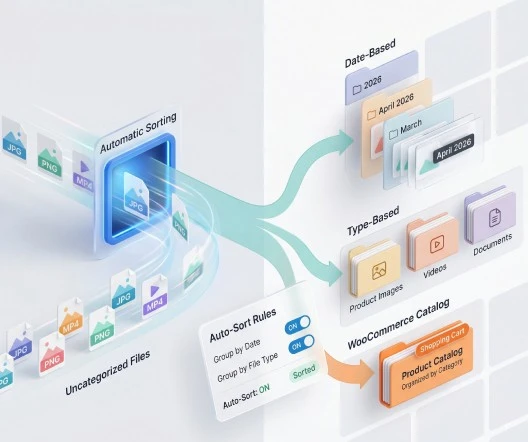
Smarter library scanning
See thumbnails and context together so the right file is obvious before you insert it into a post or product.
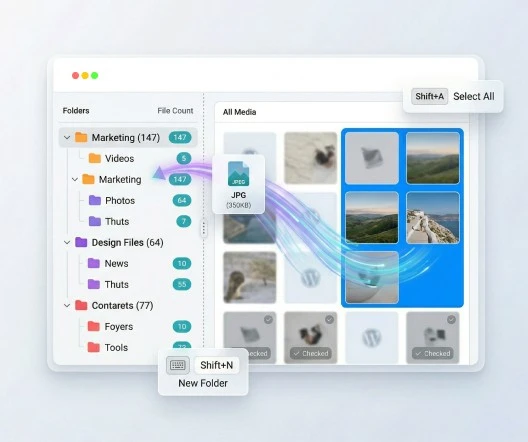
Folder tree & sidebar width
Keep hierarchy visible alongside content; widen or narrow the tree to match your screen and naming style.
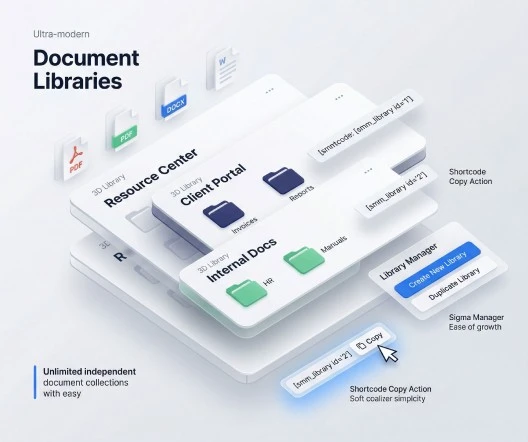
Document libraries
Optional structured libraries for downloads—folders, layouts, and shortcodes when you need more than open media URLs.
Sharing
Built-In WordPress Download Manager & Document Libraries
Beyond dashboard organization, Sigma Media Manager includes a WordPress download manager style experience for files you want to publish: multiple libraries, folders, grid or list layouts on the front end, search, optional passwords and Captcha, and shortcode embedding—without bolting on a separate download plugin.
Dive deeper: WordPress document library features (security, shortcodes, file types).
- Multiple libraries with their own folders and shortcodes
- Front-end search and browsing for visitors
- Optional passwords and bot protection for sensitive files
- Works alongside the same media you organize in folders
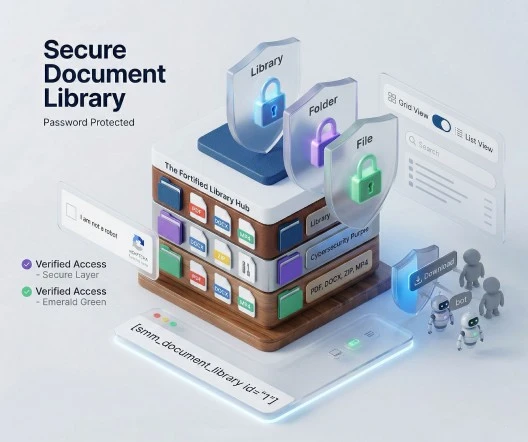
What better file organization means in practice
Teams adopt Sigma Media Manager’s file manager because it connects everyday WordPress work—blog posts, landing pages, WooCommerce catalogs—to a library that stays navigable month after month.
Faster content production
Editors find assets in seconds with folders and colors instead of scrolling an endless flat grid.
Cleaner handoffs
Agencies can separate client folders, campaign assets, and reusable brand files without a separate DAM.
Fewer duplicate uploads
When files are easy to locate, teams stop re-uploading the same image under slightly different names.
One licence, one update cycle
File management connects to Sigma Media Manager’s image tools, AI metadata, offload, and cleanup—so you are not stitching five plugins together just to run a professional media stack.
Related capabilities
- Document library — Passwords, shortcodes, and front-end libraries for downloads.
- Image optimizer — Compression, resize, and AI alt text inside the same workflow.
- Sigma Media Manager vs alternatives — See how Sigma Media Manager compares to FileBird, HappyFiles, and folders-only tools.
FAQ
Frequently asked questions
Yes. Sigma Media Manager supports unlimited folders with full nesting, so you can mirror real project or client structures inside the WordPress media library.
Common shortcuts include Shift + A (select all), Shift + N (new folder), Shift + U (upload), and Shift + Del (delete). You can enable or disable shortcut support in settings.
Yes. The folder sidebar width can be set between 200px and 400px in display settings so long folder names stay readable.
It lets you create structured, shareable libraries for resources, client files, and downloads—with search, grid or list layouts, optional passwords, Captcha, and shortcode embedding.
Sigma Media Manager organizes attachments in a WordPress-native way. Posts, pages, and builders that reference media IDs keep working; you are not hand-editing URLs when you move files between folders.
Yes. Sigma Media Manager enhances the native media library and attachment model, so Gutenberg, Elementor, Divi, WooCommerce product galleries, and other tools that use WordPress media continue to behave as expected.
You can switch between grid and list layouts, set items per page (typically 20–100), adjust thumbnail size, and show optional file size and upload date in list view for faster scanning.
Replace five plugins with one workflow
Sigma Media Manager replaces separate tools for folders, AI metadata, unused-file cleanup, cloud offload, image optimization, and document security — all from one lightweight WordPress plugin.
- Media Folders
- AI Metadata
- Unused Media Cleanup
- Cloud Offload
- Image Optimization
- Document Security