
How to customize WooCommerce Shop Page with Elementor

Build any WordPress form in minutes with Sigma Forms.
Coming Soon & Maintenance Mode Page Builder Plugin
Easily make websites accessible One Accessibility
Simplify your dashboard with Smart Admin Assistant
Dark Reader plugin is eye-friendly reading experience.
A full Featured web design companion for Anyone
Most superior Slider in the Era of Elementor Slider
ZoloBlocks helps you create stunning websites with the Gutenberg builder.
The only Compatible blogging widgets in Elementor for any Blog
Create next gen e-commerce website for your business in WordPress
Organize your photos in a different angel every time with Elementor
Boost engagement and sales with the Spin Wheel WordPress plugin.
Instant Image Generator for WordPress powered by ChatGPT.
Copy & Paste any web design you like just with 2 clicks!
A fully functioning theme for elementor with unlimited options
Smart Clean & Flexible Block Theme for Gutenberg
WooCommerce one-page checkout to boost conversions.
Find Nearby Stores Instantly with Sigma Store Locator
The Ultimate WordPress Media Library Organizer
Find us 24/7 at your service. We are glad to help.
Detailed guidelines available for every features at BdThemes
A changelog is a log or record of all notable changes made to a product.
Learn product usage, WordPress tips & tricks from our videos
Earn hefty commissions by joining us in the promotion
Widget Idea Share is a great way to find similar widgets that you can improve.
Written by admin. Posted in Elementor No Comments
If you have a WooCommerce shop and you want to grow your business, we are here to show you how to edit WooCommerce shop page with Elementor page builder.
In this article, we will show you the process to customize woocommerce shop page with elementor through a few simple steps. You have to be with us till end to learn the process.
I assume that you have installed WooCommerce and setup a shop page for your business. Lets show you the process of editing single product page.
There are a few simple steps to edit the shop page. You don’t have to be worried about this. We will use elementor woocommerce builder & elementor woocommerce theme.
Step 1: Create the Single Product Template
Step 2: Choose a Pre-Designed Woocommerce Template, or build one from scratch
Step 3: Add the Product Widgets that will make up your page
Step 4: Preview the Product Page With Another Product
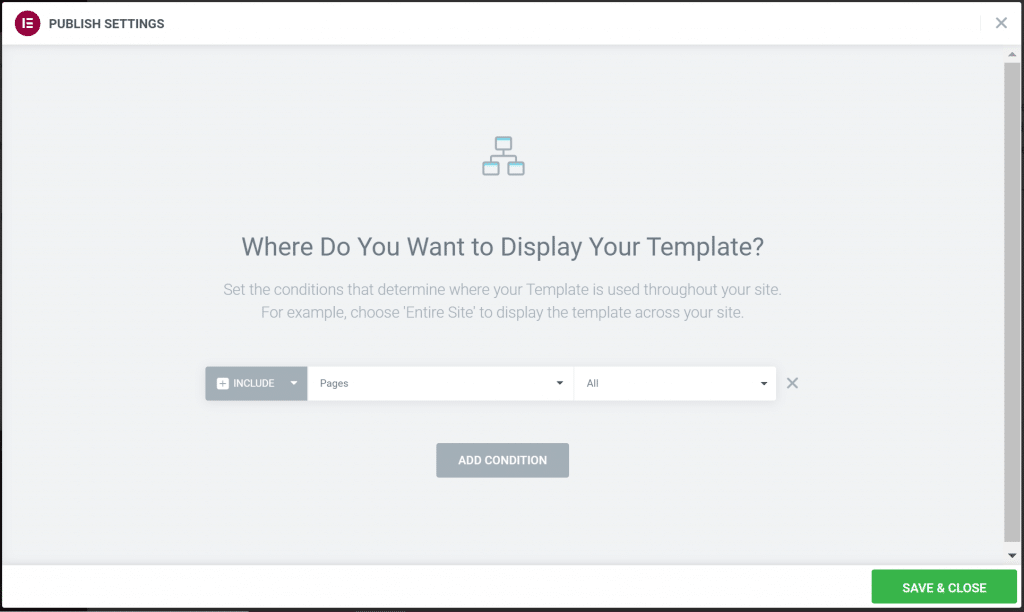
Step 5: Set the Conditions
Let’s get started!
Start designing the single product template in Elementor, follow a similar procedure as creating the regular single template.
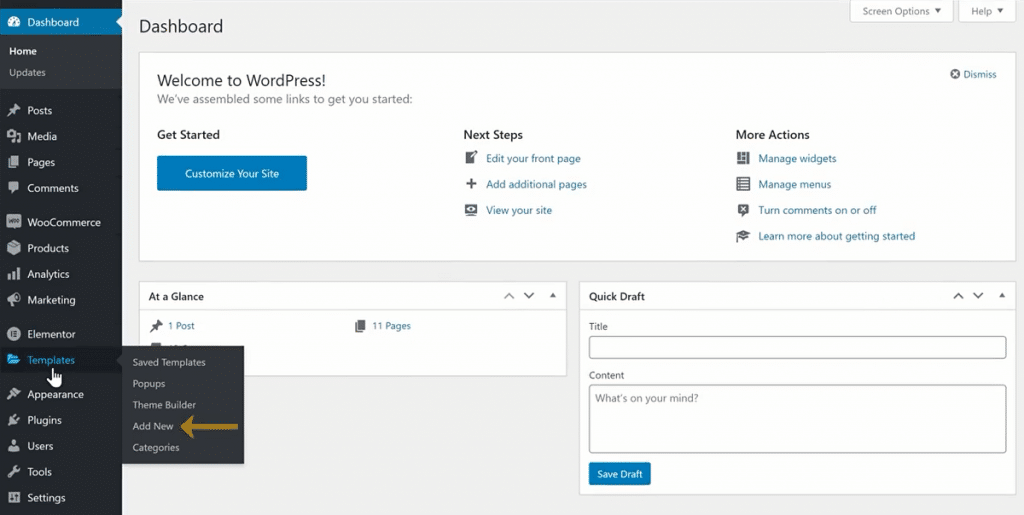
To do this, you have to go to the WordPress website dashboard>Template>Add New. Then you have to select Single Page from the template options and click on the Create button.
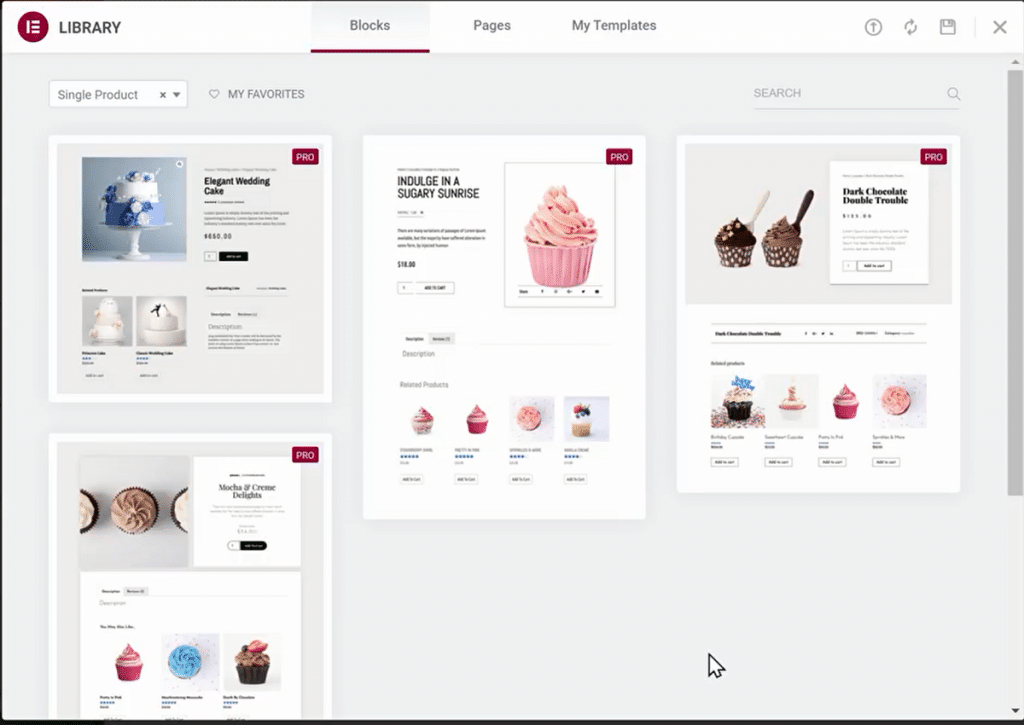
Follow the easiest way to get started. Use one of the pre-designed woocommerce shop page template,customize it to fit your site. You can choose various styles because there are several different styles of product pages to choose from.
Before you start adding widgets, make sure you are working on a full width product page, by switching to a full-width template.
Use Elementor to have total customization control over the layout and style of the product page.
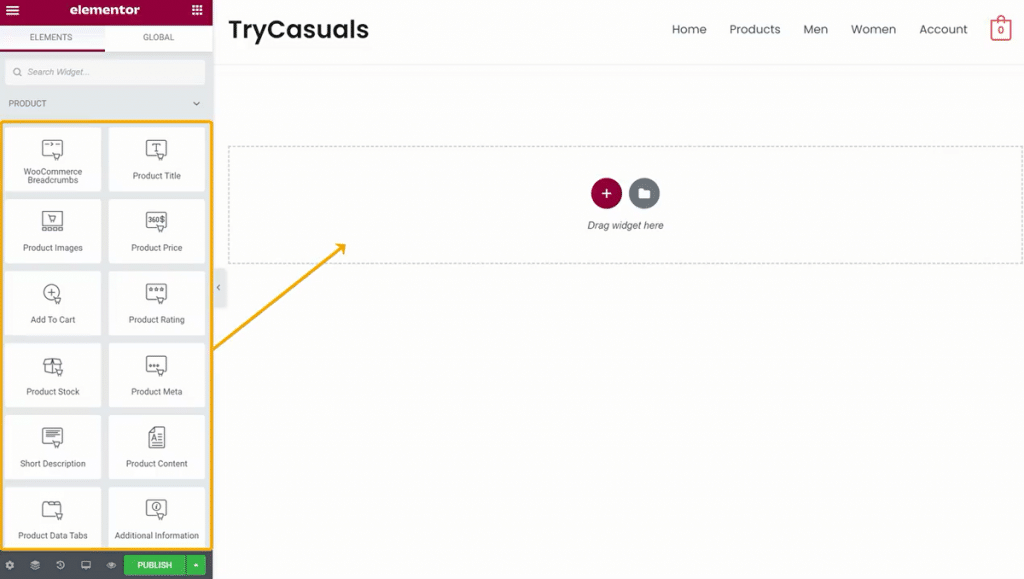
There is another option to build it from scratch. In the editing panel, you can see the special widgets for the product.
Now, it’s time to build the elements that will make up your product page. For the full list of product widgets, head over to our documentation on the subject. For this tutorial, you will use the following Elementor widgets and no other plugins:
You have complete freedom to play around with the layout and move elements around.
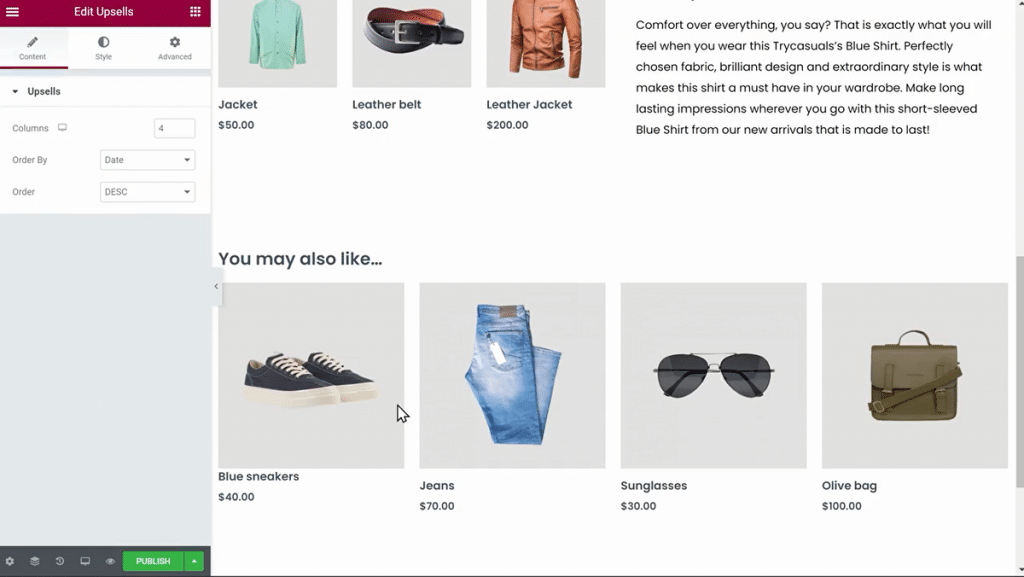
You have the opportunity to use any other widget to make your product page more effective and engaging. You can add Share buttons, call to action widgets, featured image, drop down menus, and even custom fields to the template using the dynamic content feature.
We advise that you preview it with several different products to make sure your product template has the right design.
You have to click on the eye icon on the bottom left panel, then settings. Under Preview Settings, choose the specific product you want to display. Now, apply and review to see how it looks like.
This is the last stage in which you set the conditions to determine where your product template will appear. By default, the template will affect all the product pages on your site. You can also select a specific category of products.
Click on Publish – and your single product is live!
All done! You have successfully edited your WooCommerce shop page using wsdgets. Now you can expect more visitors to your site ever than before.
You can get the design flexibility to create and fine-tune your product pages visually with Elementor’s WooCommerce Builder that gives you the opportunity. This helps you save your time, and considerably reduces the time it takes to go from an idea you have, to a live and fully-functional online WooCommerce store.
There are numerous WooCommerce themes that you can look at and check this examples of WooCommerce websites for inspiration.
Thank you to be with us. Have a nice day.
Take advantage of fine-tuned plugins to speed up web projects without sacrificing quality. We offer a 60-days money-back guarantee.

BdThemes is the sole owner of #1 market-leading addons for Elementor such as Element Pack Pro, Prime Slider, Ultimate Post Kit, Ultimate Store Kit, Pixel Gallery, and more useful plugins.
This website is powered by Element Pack Pro, Rooten Theme, and the sister concern of Sigmative LLC
Call or WhatsApp for assistance:+880 1700 55 95 95
